Control Panel
The Control Panel is the permanent on-screen interface — the bar across the top of the screen and the panel down the right-hand side. Together they hold every command you use to read the state of your city and to build, inspect, and manage it. Almost everything you do outside of clicking the map itself starts here.
Overview
The interface is split into two persistent regions:
- The top menu bar — drop-down menus on the left (File, Options, Help, Overseers) and the live city read-outs on the right (date, population, treasury) together with the map-rotation controls.
- The side control panel — the overview minimap, the overlay selector, the advisor and world-map buttons, the twelve build-menu category buttons, an action row (undo, messages, problem finder, mission briefing), and the city ratings with the game-speed control.
The side panel can be collapsed to a narrow strip to free up screen space, leaving only the build buttons visible.
Top menu bar
The left side of the top bar holds four drop-down menus. Click a header to open it; click an item to act.
File
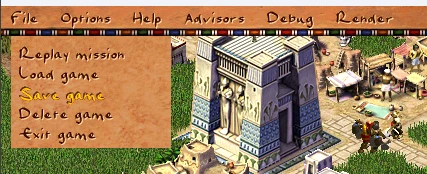
| Item | Action |
|---|---|
| New Game | Abandon the current city and return to the dynasty / mission selection. May be hidden in some missions. |
| Replay Map | Restart the current mission from the beginning. |
| Load Game | Open the load-game file dialog. |
| Save Game | Open the save-game file dialog. |
| Delete Game | Open the delete-save file dialog. |
| Exit Game | Quit to the main menu (with confirmation). |
Options
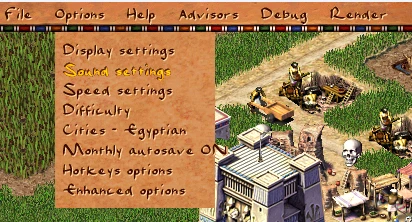
| Item | Action |
|---|---|
| Display Options | Resolution / windowed settings (hidden when the build is fullscreen-only). |
| Sound Options | Music, speech, effects, and city-sound volumes. |
| Speed Options | Game-speed and scroll-speed settings. |
| Difficulty Options | Set the difficulty level. |
| Popup Messages | Choose which message categories appear as a top-of-screen banner instead of a modal dialog (OG Cleopatra). Selected categories stay in the message archive. |
| City Names | Toggle between modern and historical empire-city names. |
| Monthly Autosave | Toggle the automatic monthly save on or off. |
| Hotkeys Options | Open the keyboard-shortcut configuration. |
| Enhanced Options | Akhenaten's extra engine features panel. |
Help
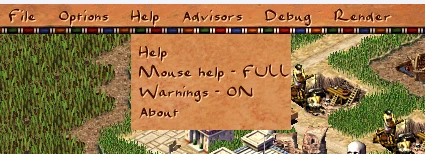
| Item | Action |
|---|---|
| Help | Open the in-game help dialog. |
| Mouse / Tooltips | Cycle the tooltip display mode (off / some / full). |
| Warnings | Toggle on-screen building warnings. |
| About | Show the about dialog. |
Overseers (Advisors)
The Overseers menu opens any of the twelve advisors directly: Labor, Military, Imperial, Ratings, Trade, Population, Health, Education, Entertainment, Religion, Financial, and Chief. (The same advisors can be reached from the advisor button on the side panel.)
City read-outs & map rotation
The right side of the top bar shows three live read-outs and the rotation controls:
| Element | Shows |
|---|---|
| Funds | Current treasury in Debens. The text turns red when the treasury is negative. |
| Population | Current city population. |
| Date | Current month and year (BC / AD). |
| Rotate ◄ ● ► | Rotate the isometric map left, reset orientation, or rotate right. |
Right-click the date, population, or funds read-out to open a short dialog explaining what that number means and how it is calculated.
Side control panel
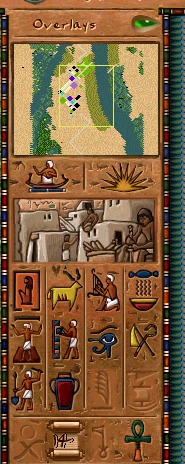
From top to bottom, the expanded side panel contains:
| Element | Function |
|---|---|
| Minimap | A radar-style overview of the whole city, colour-coded by structure type. The colouring changes to match the active overlay. Click it to jump the camera. |
| Overlays link | Left-click opens the overlay menu (desirability, water, crime, labor, entertainment, etc.); right-click opens the overlay selector list. |
| Flat view link | Toggles flat buildings view (default hotkey Shift+F). Tall buildings keep their footprint sprite but drop iso tops so roads behind them stay visible. While On, Ctrl+right-click raises one building back to full height. Overlays temporarily override flat draw; the hotkey still toggles the session flag. |
| Advisors button | Opens the advisors (Overseers) screens — the same set listed above. |
| World Map button | Opens the Empire / world map showing trade routes and neighbouring cities. |
| Build menu buttons | Twelve construction categories — see below. |
| Undo | Reverts the last build action (greyed out when nothing can be undone). |
| Messages | Opens the message list; a small counter shows the number of unread messages (greyed out when there are none). |
| Go to problem | Jumps the camera to the next flagged problem area in the city. |
| Mission briefing | Re-opens the current mission's briefing for review. |
Build menu buttons
The heart of the panel is a grid of twelve category buttons. Clicking one opens that category's build menu, from which you place buildings on the map. A category button is greyed out when the current mission has no buildings unlocked in it yet.
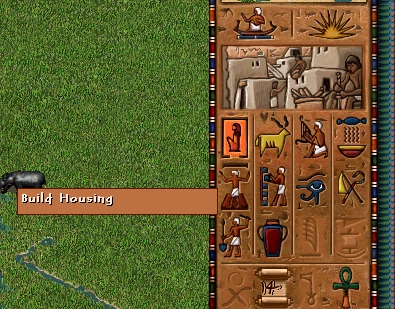
Housing · Road · Clear Land · Food · Industry · DistributionEntertainment · Religion · Education · Health · Administration · Security
The currently open category stays highlighted while you build. These same twelve buttons are the only part of the panel that remains visible when it is collapsed.
Ratings & speed
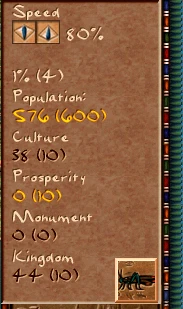
Below the build buttons, the expanded panel shows the city's vital statistics and the game-speed control:
| Read-out | Meaning |
|---|---|
| Game speed | Current speed, with up / down arrows to change it. |
| Unemployment | Current unemployment percentage. |
| Population | Current population total. |
| Culture | Culture rating. |
| Prosperity | Prosperity rating. |
| Monument | Monument rating. |
| Kingdom | Kingdom rating. |
The four ratings (Culture, Prosperity, Monument, Kingdom) are the values most mission win-conditions are measured against, so keeping this part of the panel in view is a quick way to track progress toward victory.
Collapsing the panel
A collapse / expand button at the top of the side panel slides it in and out with a short animation and sound. When collapsed, the panel shrinks to a narrow strip that keeps only the twelve build-menu buttons, giving the city view more horizontal space. Expand it again to bring back the minimap, advisor and world-map buttons, the action row, and the ratings.

Tips
- Right-click the funds, population, or date read-out whenever you are unsure what a number includes — each opens a plain-language explanation.
- Use the Go to problem button to sweep the city quickly: it cycles through fires, collapses, blocked buildings, and other flagged issues without hunting for them on the map.
- Keep an eye on the messages counter — gods' moods, requests, and disasters all arrive as messages, and ignoring a request can close trade routes.
- Collapse the side panel on small screens or during careful map work; the build buttons stay available so you lose nothing essential.
- The build-category buttons grey out until the mission unlocks them — if a category looks disabled, its buildings are not yet available, not missing.
Developer reference
All paths relative to the repository root. The Control Panel is defined declaratively in JS and rendered by C++ widgets.
Side panel config — src/scripts/ui_sidebar_window.js
src/scripts/ui_sidebar_window.js declares two layouts, sidebar_window_expanded (186 px wide) and sidebar_window_collapsed (66 px). Each defines its buttons as image_button / link elements with a tooltip (group 68) and an onclick handler:
build_house : image_button({ ... tooltip:[68, 20], onclick: window_build_menu_build_house })
show_overlays : link({ onclick: show_window_by_id("overlay_menu_widget"), onrclick: window_city_overlays_right_click })
show_advisors : advisor_button({ ... onclick: window_advisors_show_checked })
show_empire : image_button({ ... onclick: window_empire_show_checked })
undo_btn : image_button({ ... onclick: __ui_game_undo_perform })
The twelve category buttons map to window_build_menu_build_* helpers, each calling ui.sidebar_set_type() + ui.window_build_menu_show(). sidebar_window_draw_background() sets each button's readonly flag from building_menu_ctrl.count_items(BUILDING_MENU_*) (0 items → greyed out) and its selected flag from the currently open menu. The expanded layout's bottom block holds the speed control and the Unemployment / Population / Culture / Prosperity / Monument / Kingdom read-outs.
Top menu config — src/scripts/ui_top_menu_widget.js
src/scripts/ui_top_menu_widget.js defines top_menu_widget: the headers block (file, options, help, advisors, plus debug/render headers) and one items block per menu. The right-aligned ui block defines the date, population, and funds links and the rotate_left / rotate_reset / rotate_right controls.
top_menu_widget_draw(ontop_menu_widget_drawevent) writes the funds text —__loc(6,0) + treasury, red font when treasury < 0 — and the cached date / population strings.top_menu_update_population_text/top_menu_update_date_textrebuild those strings onevent_population_changedandevent_advance_day.- Right-click handlers
top_menu_*_explanationopenmessage_game_control_*_displaydialogs for date, population, and money. - The
advisorsheader items carrygroup 4ids matching theADVISOR_*enum.
C++ renderers — src/widget/widget_sidebar.cpp, widget_top_menu_game.cpp
src/widget/widget_sidebar.cpp drives the panel:
sidebar_window_expanded_t/sidebar_window_collapsed_t— the two states;collapse()/expand()run the slide animation (slide_driver::update) and playSOUND_EFFECT_SIDEBAR. State is tracked byg_camera.sidebar_collapsed.widget_minimap_draw()renders the overview map atMINIMAP_Y_OFFSET; the minimap itself lives in src/widget/widget_minimap.cpp.- Buttons are darkened (
UiFlags_Darkened) unless the active window iswindow_cityorbuild_menu_widget.
src/widget/widget_top_menu_game.cpp implements top_menu_widget_t: header hit-testing (bar_handle_mouse), sub-menu drawing (sub_menu_draw_text), and item dispatch (menu_handle_mouse). The money / population / date texts are drawn from the ui block in draw_foreground.